¶ Academics — subjects, courses, sessions, attendance
The academic layer is built around three concepts:
- Subject — a curriculum item (e.g. Mathematics, World History). One per subject name, reused across classrooms and years.
- Course — a concrete offering of a subject for a specific classroom, term, and teacher. E.g. Mathematics — 9A — S1. Students are auto-enrolled from the classroom roster.
- Session — a single class meeting. Stored as a regular
calendar.eventwith a link back to the course. Generated from a weekly schedule pattern.
¶ 1. Catalog your subjects
School → Configuration → Subjects → New.
Keep subjects general. Mathematics rather than Algebra II — Grade 10 Section A, because the subject gets reused across classrooms and years. The specificity lives on the course, not the subject.
¶ 2. Create courses
School → Academics → Courses.
Default view is a kanban grouped by state:
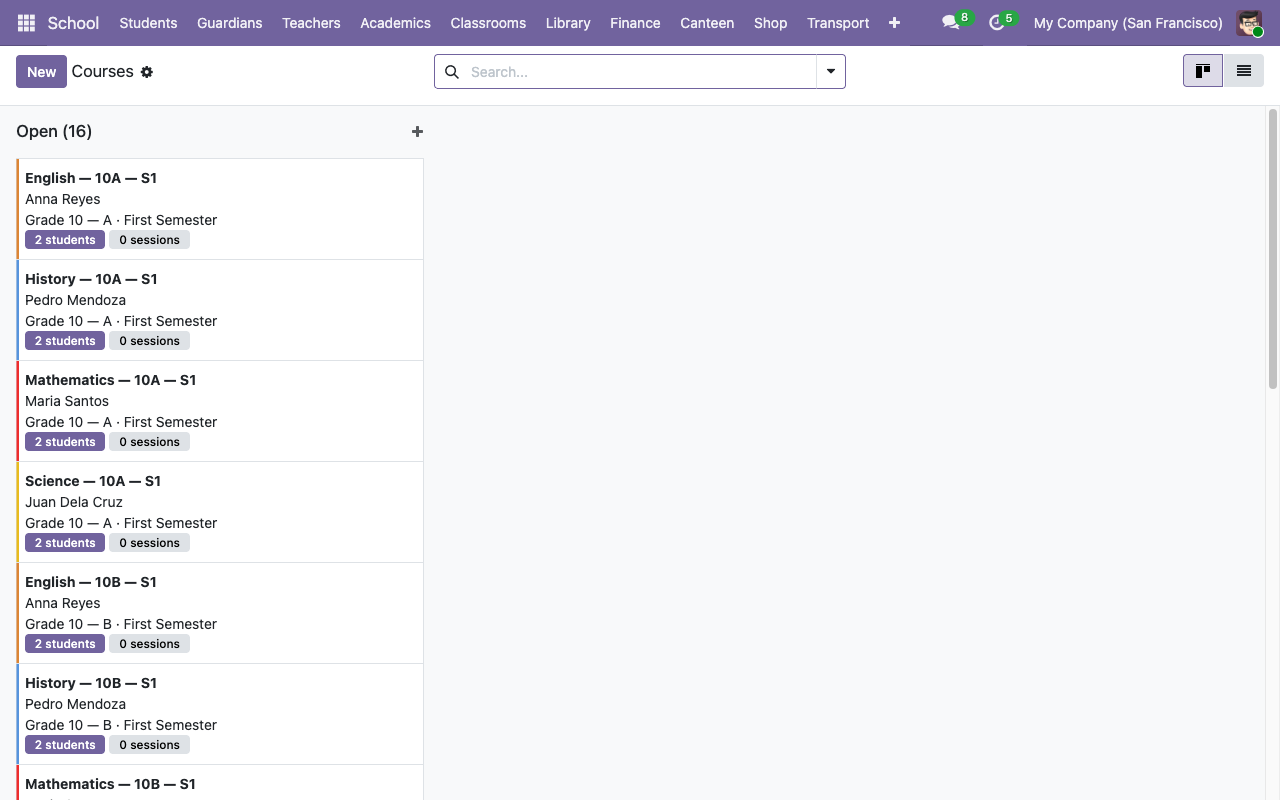
Click New. Fill in:
| Field | Notes |
|---|---|
| Subject | From the catalog. |
| Classroom | The cohort that will take this course. |
| Teacher | Picker is filtered to is_teacher employees. |
| Term | Determines date range for session generation. |
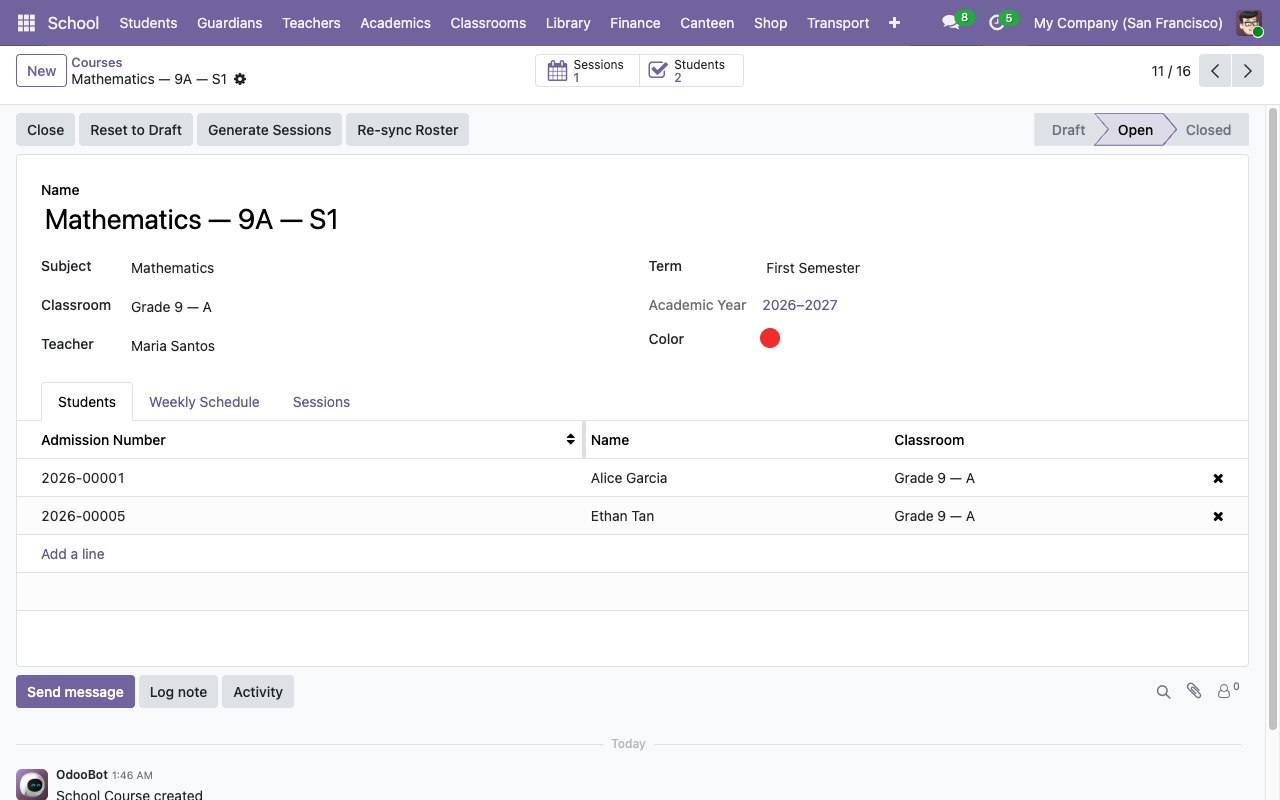
The course name is auto-generated from Subject — Classroom.code — Term.code (e.g. Mathematics — 9A — S1). You can override it if you want a different label.
When you save, the course's Students tab auto-populates from the classroom's current roster. If students are added/removed from the classroom later, click Re-sync Roster on the course form to refresh.
¶ Session scheduling
Each course has a Weekly Schedule tab. Each line represents a weekly meeting slot:
| Field | Notes |
|---|---|
| Weekday | Mon / Tue / Wed / Thu / Fri / Sat / Sun. |
| Start Time | 24-hour float. 10.5 means 10:30. |
| Duration | Hours. Max 8. |
| Location | Free-text. Defaults to the classroom's display name if left blank. |
Once the rules are in, click Generate Sessions in the form header. Odoo walks the term's date range and creates a calendar.event for every matching weekday × time combination, with:
school_course_id = <this course>.school_session_state = 'scheduled'.- All enrolled students added as attendees (so they see the meeting in their calendar).
The action is idempotent — re-running it only creates sessions for dates that don't already have one. Safe to click twice.
¶ Marking attendance
Attendance is per-session, per-student. Each attendance record has a state: present, absent, late, excused.
Two ways to enter attendance:
-
Bulk "Mark All Present" — open the session (either from the course's Sessions tab or from
/odoo/calendar), scroll to the attendance panel, and click Mark All Present. This creates apresentrow for every enrolled student that doesn't already have one, and flips the session tocompleted. Existing rows (e.g. marked absent) are NOT overwritten. -
Row-by-row — add / edit attendance lines directly on the session form. Pick the student, pick the state, add a note.
Two safety nets enforce data integrity:
UNIQUE(exam_id, student_id)at the DB level — you can't record the same student twice on a session.@api.constrainsat the ORM level — the student must be enrolled in the session's course. Adding a non-enrolled student raises aValidationError.
¶ Changing the roster mid-term
Students who transfer into a classroom after courses were created aren't automatically added to those courses. You have two options:
- Open each course, click Re-sync Roster. Pulls the full current classroom roster into the course.
- Or add the student manually to the course's Students tab.
Re-sync Roster is idempotent and doesn't remove students who are on the course but not the classroom — so if you've deliberately added an outside student (e.g. a 10th grader sitting in on a 9A course as an elective), they stay.