¶ Fees, enrollments, and invoices
The fee pipeline in four steps:
Fee Items (products)
     │
     ▼
Fee Structure (bundle for grade × term)
     │
     ▼
Fee Enrollment (one per student)
     │
     ▼  Generate Invoice
account.move (customer invoice)
¶ 1. Create fee items
School → Configuration → Fee Items → New.
A fee item is just an Odoo product flagged is_school_fee = True. Set:
- Name — e.g.
Tuition Fee,Lab Fee,Activity Fee. - Type —
Serviceis a safe default. - Sales Price — base price.
- Ignore Purchase/Inventory/etc. tabs unless you need them.
Because fee items are regular products, Odoo's pricing, taxes, and income accounts flow through for free. If you want tax on tuition, set the tax on the product; it carries through to the invoice automatically.
¶ 2. Build a fee structure
School → Configuration → Fee Structures → New.
A fee structure is a grade-level × term bundle — e.g. Grade 9 Fees, Fall 2026. Because it's scoped to a grade, one structure automatically applies to every classroom at that level (9A, 9B, ...).
| Field | Notes |
|---|---|
| Code | Short unique key (e.g. FS-G9-S1-2627). |
| Grade Level | K through 12. |
| Term | Links this structure to one term. |
| Currency | Defaults to company currency. |
Then add Items — one line per fee component:
| Line field | Notes |
|---|---|
| Product | Picker filtered to is_school_fee = True. |
| Quantity | Usually 1. Use higher for multi-unit fees. |
| Price Unit | Seeded from the product's list price; editable. |
| Subtotal | Computed qty × price. |
The Total Amount at the top rolls up. Set State to open when you're ready to enroll students.
¶ 3. Enroll students
School → Finance → Fee Enrollments.
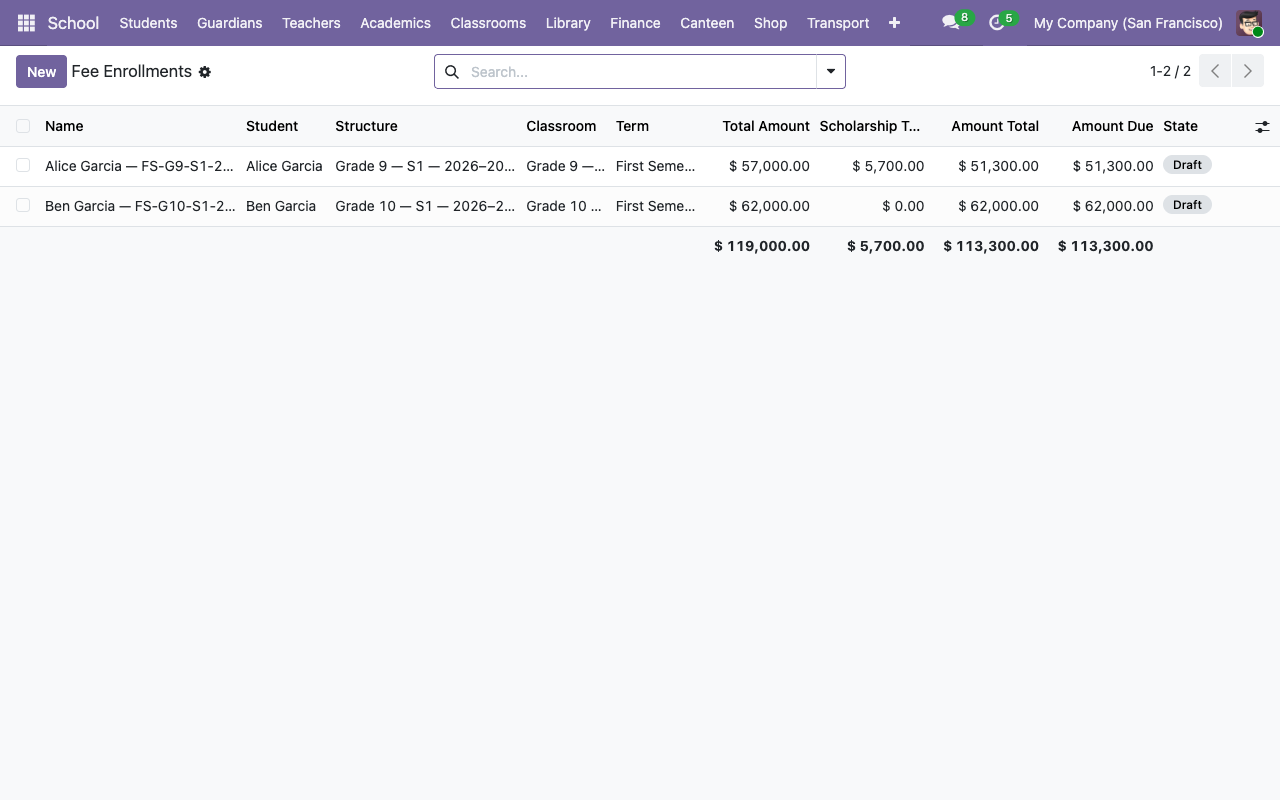
Click New, pick the student and the structure. The system enforces that the student's classroom grade level matches the structure's grade — you can't accidentally put a Grade 9 student on a Grade 10 fee schedule.
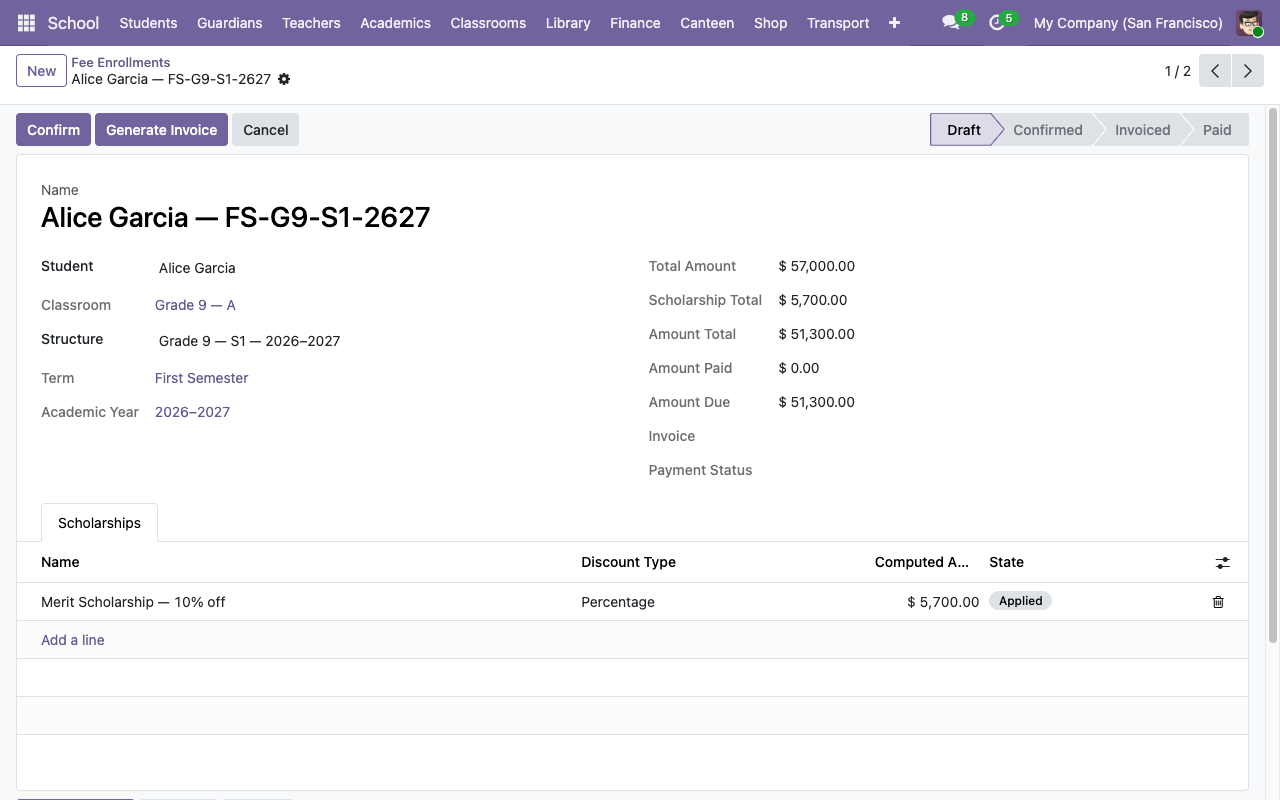
The form auto-populates the rollups:
| Field | Derivation |
|---|---|
| Total Amount | Related from structure.total_amount. |
| Scholarship Total | Sum of applied scholarships (see step 4). |
| Amount Total | total − scholarship_total. |
| Amount Paid | From the generated invoice (updates after posting + payment). |
| Amount Due | amount_total − amount_paid. |
State lifecycle: draft → confirmed → invoiced → paid → cancelled.
¶ 4. Apply a scholarship
On the enrollment form, go to the Scholarships tab and click Add a line.
| Field | Notes |
|---|---|
| Name | Required (e.g. Merit Scholarship — 10% off, Sibling Discount). |
| Discount Type | Fixed Amount or Percentage. |
| Amount / Percentage | Mutually exclusive. Fill in exactly one. |
| Reason | Free text. Useful for audit trails. |
| State | draft → applied → revoked. |
Only scholarships in Applied state deduct from the enrollment total. That two-step gate (create in draft, then apply) lets you queue up a batch and flip them live at once.
¶ 5. Generate the invoice
Click Generate Invoice on the enrollment form. The system:
- Creates a draft
account.movewithmove_type = out_invoice,partner_id = student,invoice_origin = enrollment.display_name. - Adds one line per fee-structure item (product, quantity, price).
- Adds one negative line per applied scholarship (named
Scholarship: <name>,price_unit = -computed_amount). - Subscribes the student's guardians as invoice followers — they receive invoice notifications via Odoo mail.
- Moves the enrollment state to
invoicedand stores the invoice reference inenrollment.invoice_id.
The invoice is left in Draft for Accounting to review and post. We deliberately don't auto-post so someone in Finance has a chance to sanity-check before it hits the books.
¶ Once it's posted
Posting the invoice in Accounting triggers the normal Odoo payment flow. As payments are registered against it, enrollment.amount_paid and enrollment.amount_due update automatically, and enrollment.payment_state mirrors invoice.payment_state (not_paid / in_payment / paid / partial).
¶ 6. Handling changes after invoicing
Odoo's accounting integrity rules make post-hoc invoice edits painful. So the flow is:
- Click Cancel on the enrollment — cancels the invoice too (if it's still in draft).
- Edit the enrollment (add/remove scholarships, adjust lines, change the student's structure).
- Click Reset to Draft, then Generate Invoice again.
If the original invoice is already posted, cancelling requires you to first go into Accounting and reset the invoice to draft.
¶ Fee invoices menu
School → Finance → Fee Invoices gives you a pre-filtered view of account.move records that originated from a fee enrollment (via the school_enrollment_ids inverse field on account.move). Use this to filter to "just school invoices" when the Accounting Invoices view gets crowded with other customer invoices.